
Council for Medical Scheme accreditation: Process to renew or apply
Healthcare advisers need to apply and renew their Council for Medical Scheme (CMS) accreditation online at https://www.medicalschemes.com/AccreditationPortal. The accreditation process is owned and managed by the CMS, and could change from time to time. Please engage directly with the CMS, should you have any questions.
Process for renewal applications
- Click on the “Broker/Brokerage Portal” and go to the login page.
- Complete your email address (as username) and password.
- Your details will be pre-populated for you to complete your renewal application.
- Follow the “Individual Broker” application process outlined below. Complete each section and click on “Save and continue” before completing the next section.
- If the portal does not recognise you, select the “Forgot your password?” option.
- The portal system will forward a reset password link to the selected/entered email.
- If you experience any problems registering, contact the Council for Medical Schemes on 0861 123 267 or send an email to [email protected].

Process for new applications
- Click on the “Broker/Brokerage Portal” and go to the login page.
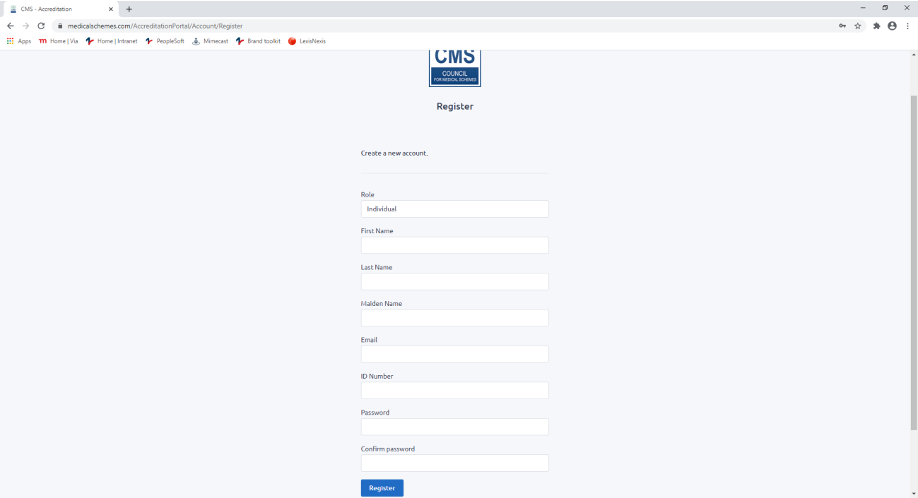
- Click on “Register as a new user”, submit your details and click on “Register”.
- Click on the link in the activation email that you will receive and proceed to the login page.
- Complete each section of the application and remember to click on “Save and continue” at the bottom of each section.
Additional information for MFP planners
Home page
- Complete your “Personal Details”.
- The FSP/FSB number for Momentum is 6406.
- Click on “Submit”.
- You will receive a notification that “User details have been successfully updated”.
- Click on “Apply” and then on “Individual Broker” at the top left of the home page.

Section A
- Verify that your details are correct.
- Enter your “Accreditation Number previously allocated (if applicable)” in section A – Question 9.
- Question 10: The FSP number should reflect as 6406.
- Question 12: Provide details of your “Relevant employment history”. Attach a copy of your mandate or health agreement in Section E. Copies of the relevant documents are available in your IBox Vault or you can request copies from your Portfolio Assistant.
Section B
- Question 13: Select “Yes”.
- Question 14: Complete Momentum Metropolitan Life’s accreditation number as 1116 and press the “enter” key. It will auto update the employer fields.
- Select “No” to questions 14(b) and 14(c).
- Click “Save and continue”.

Section C
- Section C must only be completed by applicants applying as a sole proprietor or independent broker. You can move to the next section if no changes need to be made.
- If you receive an error message on submission, complete Section C as follows:
- Question 16 is not applicable, leave it blank.
- Question 17: Select “Momentum Medical Scheme” from the drop-down list and enter the date you started advising on Momentum Medical Scheme products as an accredited/apprentice broker.
- Questions 18 and 19 are not applicable, leave them blank.
- Click on “Save and continue”.
Section D
- Answer all the “Fit and proper requirement” questions and where you have answered “No”, complete “N/A” in the block which asks for reasons (don’t leave it blank).

Section E
Upload certified copies (certification not older than three months) of:
- Question 32.1: Your ID or valid passport; and
- Question 32.2: Select “Yes” and attach a copy of your mandate or health agreement (refer to Section A, question 12).
- Question 32.3: Select “No” and as reason state “Employed broker”.
- Question 32.4: Select “No” and as reason state “Employed broker”.
- Question 32.5: Select “No” and as reason state “N/A”, unless your current surname differs to the surname on your academic qualification, in which case select “Yes” and provide a certified copy of your marriage certificate.
- Question 32.6: Select “No” and as reason state “Employed broker”.
- Question 32.7: Select “No” and as reason state “Accredited broker”. If you are applying to be accredited as an apprentice broker, select “Yes” and attach a copy of your signed supervision agreement.
- Question 32.8: Attach a copy of your proof of payment.
- Bank account details for the Council for Medical Schemes:
- Bank: Absa
- Branch code: 517245
- Branch name: Vermeulen Street
- Account number: 4051163394
- Reference: Your ID number or your full names and surname
- Question 32.9: Upload the MIE report with the original email from MIE. You can request the report from your Portfolio Assistant.
- Click “Save and continue”.
Section F
- Read the “Consent for the use of Personal Information” disclosures and select “I hereby consent to the above use of Personal Information”.
- Click on “Save and continue”
Section G
- Read the “Declaration by applicant” section and select all three declarations and undertakings.
- When done, click “Submit”.
- Should any information be missing or incomplete on the online application form, you will receive an error message and the portal will request you to correct the error(s) on the form.
- The system will alert you to any outstanding information in each section when you click on “Save and continue”.
CMS contact centre
If you need any additional assistance, or if you experience any problems with the online portal, contact the CMS on 0861 123 267 or email them at [email protected].
Confirmation of submission
Once you have submitted your application, you will receive a confirmation email from the CMS. Save the email for future reference and send a copy of it to your Regional Manager and Provincial Compliance Officer.